How to Add Video Without Slowing Your Site
Video boosts conversions, but it can tank your page speed if done wrong. Here's how I embed high quality video while keeping load times under 2 seconds.
Key Takeaways
- •Unoptimized video embeds can add 2-5 seconds to your page load time
- •Facade pattern (poster image + play button) eliminates video load time until user interacts
- •Self-hosted video gives you more control but requires proper CDN and compression setup
- •YouTube embeds are the easiest option but come with third-party performance overhead
- •Core Web Vitals scores directly impact rankings. video should help them, not hurt them
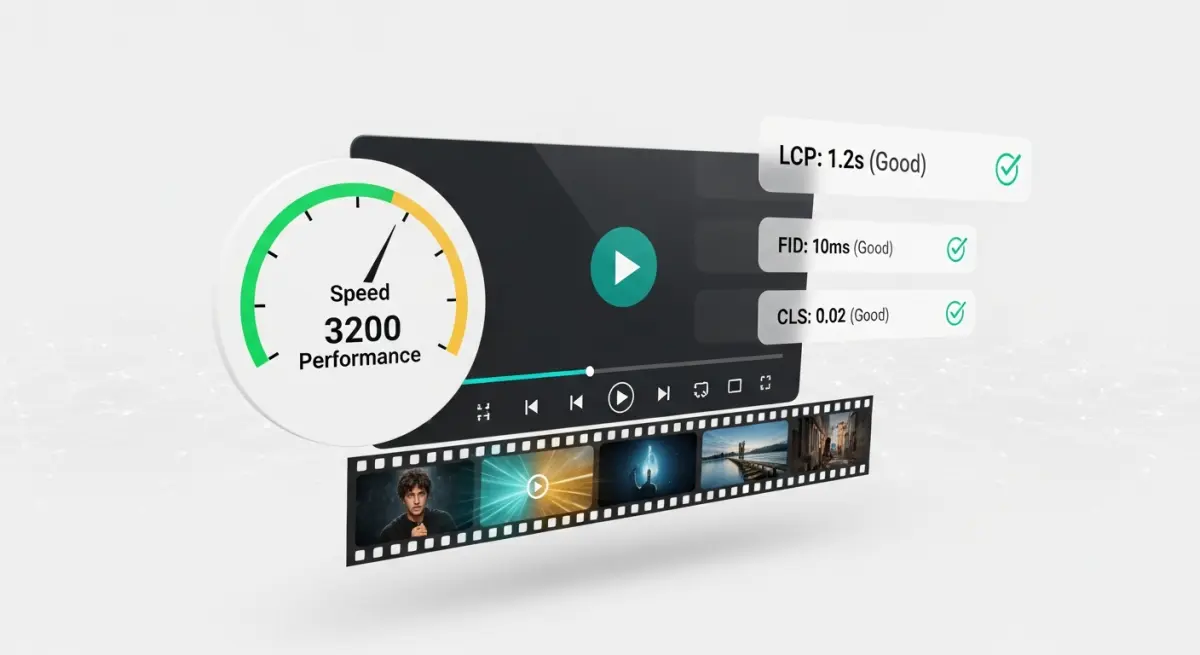
The majority of video embeds on business websites are actively hurting the pages they sit on. Not because video is bad for websites. It is great for websites. But because the implementation is wrong in ways that add seconds to load times and wreck Core Web Vitals scores.
Consider a business that invests in a beautiful portfolio video showcasing their work. They drop it onto the homepage as a raw YouTube embed. PageSpeed score falls from the high 80s to the low 40s. Mobile load time balloons past seven seconds. Inquiries decline noticeably within weeks.
The video is great. The implementation is the problem.
This post is part of my Visual & Motion SEO guide series.
What Actually Happens When You Embed a Video
Drop a YouTube iframe or self-hosted video file onto a page without optimization, and here is what fires behind the scenes before anyone clicks play:
- The browser downloads the video player's JavaScript framework (hundreds of kilobytes)
- It fetches video metadata and preview thumbnails from YouTube's servers
- It may begin preloading the actual video file
- For YouTube embeds specifically, the browser opens connections to google.com, googlevideo.com, and doubleclick.net
All of this loads before any visitor has decided to watch anything. The combined weight adds 2 to 5 seconds to load time and damages your Core Web Vitals across the board.
The Facade Pattern Fixes Almost Everything
The single most impactful technique I use is the facade pattern. Instead of loading the actual video player when the page renders, you show two things:
- A static poster image showing a frame from the video
- A play button overlay sitting on top of it
When a visitor clicks, the real player swaps in and starts loading. Until that click, your page loads as if there is nothing heavier than a standard image. Performance cost is zero until the user explicitly requests the video.
This approach alone saves 2 to 3 seconds of load time per video embed.
How to implement it
<div class="video facade" data video id="YOUR_VIDEO_ID">
  <picture>
    <source srcset="poster.webp" type="image/webp">
    <img src="poster.jpg" alt="Video: Your video title" loading="lazy">
  </picture>
  <button aria label="Play video">▶</button>
</div>
A small JavaScript function listens for the button click, then swaps in the actual iframe. The page loads fast, the video remains available, and your PageSpeed score stays healthy.
Self-Hosted Video: Getting the Technical Details Right
Hosting video on your own server or CDN gives you maximum control. Here are the essentials.
Modern codecs shrink file sizes dramatically
- H.265 (HEVC) delivers the strongest compression ratio with broad browser support in 2026
- VP9 is Google's open codec and performs particularly well in Chrome
- AV1 offers the most aggressive compression available but takes longer to encode
A 3-minute video that weighs 180MB as an uncompressed MP4 can drop below 25MB with H.265 encoding at 720p without noticeable quality loss. That file size difference translates directly into faster loading.
Serve multiple quality levels
Not every visitor has fiber internet. Provide adaptive options:
- 1080p for desktop users on broadband
- 720p as the default fallback
- 480p for mobile connections or spotty coverage areas
Use a CDN for delivery
Never serve video from your main web server. A content delivery network places copies on edge servers geographically close to your visitors, which slashes load times. BunnyCDN and Cloudflare both handle video delivery well and are priced reasonably for businesses. For a Denver-based business, most of your viewers connect to a Denver or Kansas City edge node rather than waiting for data from a distant origin server.
Set long cache headers
Video files should be cached aggressively. Once a visitor downloads your video, their browser stores it locally so repeat visits skip the download entirely.
Lazy load below-fold videos
Any video not visible on the initial screen should use lazy loading. It only begins downloading when the user scrolls close. This is critical if you run multiple videos on a single page.
YouTube Embed Optimization
YouTube embeds are simpler to set up and practical for many situations. Making them performance-friendly requires a few adjustments.
Use lite-youtube-embed
The lite-youtube-embed web component applies the facade pattern specifically for YouTube. It renders a static preview and only loads YouTube's actual player when someone clicks. This eliminates iframe overhead entirely during initial page load.
Add lazy loading to standard iframes
If you stick with standard YouTube iframes, add the loading="lazy" attribute at minimum:
<iframe src="https://www.youtube.com/embed/VIDEO_ID"
        loading="lazy"
        title="Your video title">
</iframe>
Keep embed count low per page
Every YouTube embed creates a separate third-party connection with its own resource overhead. If your page needs multiple videos, the facade pattern becomes mandatory. Limit how many can load simultaneously to prevent cumulative weight from spiraling out of control.
Self-Hosted vs. YouTube: Making the Choice
The right answer depends on specific priorities.
Self-hosting makes sense when:
You need full control over the player appearance. No YouTube branding, no suggested videos at the end, no competitors showing up in recommendations. It also matters for privacy-focused businesses that want to avoid triggering third-party cookies. The trade-off is that you need reliable CDN infrastructure and you lose YouTube's built-in audience.
YouTube makes sense when:
You want the dual benefit of appearing in YouTube search results while building a channel as a traffic source. YouTube handles encoding, adaptive bitrate delivery, and global distribution automatically. The trade-off is less control over branding and the performance cost of third-party resource loading.
The hybrid approach works best for most businesses
Use YouTube embeds on blog posts and content pages where discoverability matters. Use self-hosted video on your homepage, service pages, and landing pages where you want complete control and zero distractions. This splits the benefits across both methods without giving up anything essential.
VideoObject Schema for Search Visibility
Adding VideoObject schema helps search engines understand, index, and feature your video content. Proper markup increases your chances of earning video rich results, those thumbnail previews in search results that boost click-through rates significantly.
Include these properties:
- name: The video title
- description: A concise 1 to 2 sentence summary
- thumbnailUrl: URL to your poster image
- uploadDate: When the video was published
- duration: ISO 8601 format (PT1M30S for 1 minute 30 seconds)
- contentUrl or embedUrl: The video location
Pair schema markup with a full video transcript on the page and you give search engines everything they need to rank your video content properly.
Measuring the Performance Impact
After implementing these optimizations, verify the results:
- Largest Contentful Paint (LCP): Target under 2.5 seconds
- Interaction to Next Paint (INP): Target under 200ms
- Total Blocking Time: Should drop noticeably with facade implementation
- Total page weight: Compare bytes transferred before and after
PageSpeed Insights and Chrome DevTools are the primary measurement tools. Your technical SEO depends on these numbers being right.
A before-and-after testing process
Every time you add video to a page, follow these steps:
- Record baseline Core Web Vitals using both lab and field data
- Implement the video using the facade pattern
- Wait 48 hours for field data collection to begin
- Compare scores and adjust if needed
- Check Google Search Console for any Core Web Vitals warnings
If scores drop after adding video, the implementation needs reworking. Video should never be an excuse for a slow page.
Common Video Implementation Mistakes
Autoplay with preload
Some website builders default to preload="auto" on video elements. This forces the browser to download the entire video on page load whether anyone watches it or not. Always set preload="none" or preload="metadata" at most.
Missing poster images
Without a poster attribute, the browser either shows a black rectangle or downloads part of the video to generate a preview frame. Both hurt performance and look unprofessional. Every video element needs an explicit poster image, ideally a WebP file compressed below 50KB.
Stacking too many videos on one page
Imagine a site with five YouTube embeds on a single services page. Even with lazy loading, the cumulative impact on page speed is brutal. If multiple videos belong on one page, use a gallery approach where only the selected video loads. Keep the rest as clickable thumbnail links.
Skipping mobile testing
Video behavior differs considerably between iOS and Android, especially around autoplay policies and fullscreen handling. A video that works perfectly on desktop Chrome might behave completely differently on Safari or a budget Android phone. Always test on real devices, not just browser developer tools simulating mobile viewports.
Video Implementation Checklist
For every video added to a site:
- Create a WebP poster image from a representative video frame
- Implement the facade pattern so the player loads only on click
- Compress video files using modern codecs if self-hosted
- Add lazy loading for any video below the fold
- Write and publish a full transcript on the page
- Add VideoObject schema markup with all required properties
- Test Core Web Vitals before and after deployment
- Verify performance specifically on mobile devices
Video should make your page better, not slower. The right implementation gives you the conversion benefits without the performance penalty.
Frequently asked questions
Does lazy loading video hurt my SEO rankings?
No, lazy loading has zero negative impact on video discoverability in search results. Search engines index your video based on schema markup and on-page text content, not whether the player initializes on page load. As long as you have proper VideoObject schema and a transcript published on the page, the facade pattern works perfectly.
It actually helps because your page loads faster, which is itself a ranking factor.
How much does self hosted video cost vs YouTube?
Self-hosted video delivery through a CDN typically runs $5 to $20 per month for a business site with a handful of videos. YouTube hosting is free but comes with trade-offs: potential ads unless viewers have Premium, suggested videos from competitors appearing at the end, and limited player customization.
For most businesses, the cost of self-hosting is justified for high-value pages like the homepage and primary service pages.
Does autoplay video hurt page speed and Core Web Vitals?
Muted autoplay is technically possible but I almost never recommend it because it forces the browser to download the video file on page load. Autoplay with sound is blocked by most browsers automatically. Muted autoplay negates every performance optimization you have put in place.
The only exception is very short background loops under 5 seconds that are heavily compressed, and even those should use preload="none" until the element enters the viewport.
What video length converts the most website visitors?
Homepage explainer videos perform best at 60 to 90 seconds, and service page videos work well at 30 to 60 seconds. Testimonials can run 2 to 3 minutes because viewers who click play on a testimonial are already interested and willing to invest time.
Regardless of total length, front-load your message. The first 10 seconds determine whether someone stays or leaves, so put the most compelling information right at the top.
An unoptimized video embed can undo every other speed improvement on your site. Every extra second of load time costs you visitors who will never wait around to see your content.
Picture a page where your video loads instantly on click, Core Web Vitals stay green, and visitors get the full visual experience without a single performance trade-off. That is what proper implementation delivers.
Want help optimizing your site's video performance? Let's work on it together.
Want me to help with your SEO?
I help small businesses get found on Google. Let me show you what I can do for yours.
Let's talk